Time Clock Kiosk vs Employee Mobile App: Which Is Better?
Compare a shared employee time clock kiosk with personal mobile access, including the best fit for restaurants, field teams, multi-location businesses, GPS, privacy, and offline clocking.
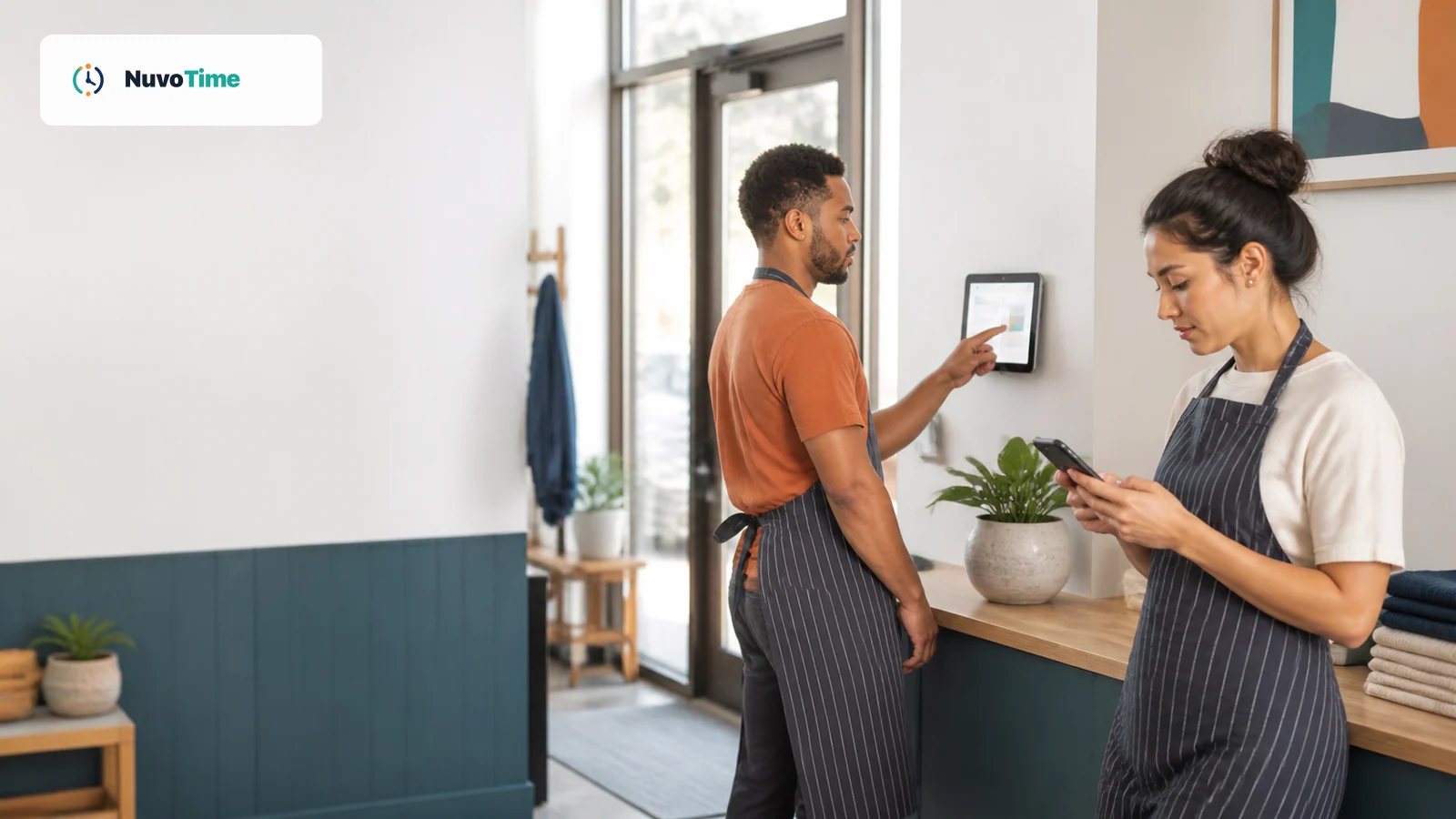
A time clock does not have to look the same for every workplace.
A restaurant may want one tablet near the staff entrance. A cleaning company may need employees to clock in from customer sites. A retailer with several branches may want a shared kiosk at each store while managers use personal access from their phones.
That leads to a practical question:
Should employees clock time from a shared kiosk or from their own mobile device?
There is no single answer for every business. The better choice depends on where employees work, how often they move between locations, whether they need personal access outside the workplace, and how much control the business wants over the clock-in point.
For many teams, the best answer is not kiosk or mobile. It is both.
Quick answer
Choose a time clock kiosk when employees usually start and finish work at a shared workplace such as a restaurant, retail store, hotel, warehouse, clinic, or office. A kiosk gives the team one predictable place to clock in and can work without requiring every employee to have a personal account.
Choose employee mobile access when people work at different locations, customer sites, projects, or changing workplaces. Personal access also makes more sense when employees need to check schedules, submit requests, receive updates, or record work while away from the main location.
Use both when some employees are location-based and others need personal access. A shared kiosk can handle routine attendance at the workplace while the same business gives selected employees their own login for schedules, requests, project time, tasks, and other work.
What is a time clock kiosk?
A time clock kiosk is a shared device used by multiple employees at one workplace.
The device might be:
- A tablet mounted near an employee entrance
- A tablet on a manager's counter
- A shared desktop computer
- A phone dedicated to employee clocking
Instead of every employee signing into a personal account, the kiosk identifies the workplace and employees identify themselves when they need to perform an action.
A common flow is:
- Employee approaches the shared device.
- Employee selects their name or enters a PIN.
- The kiosk verifies the employee.
- The employee clocks in, starts a break, ends a break, or clocks out.
- The kiosk returns to the public screen for the next person.
A kiosk can also become more than a punch clock. Depending on the system, employees may be able to see today's schedule, open work, announcements, assigned tasks, or requests from the same shared device.
What is an employee mobile app?
An employee mobile app gives each employee personal access from their own device.
The employee normally signs in to their own account and can access information intended for them, such as:
- Their work schedule
- Current clock status
- Break controls
- Time-off requests
- Shift-swap requests
- Open shifts
- Tasks
- Announcements
- Project or job time
- Personal balances or summaries
"Mobile app" does not always mean a native application downloaded from an app store. Some workforce tools are installable web apps, often called Progressive Web Apps or PWAs, that run from a browser and can be saved to the home screen.
The important distinction is not the technology used to install it. The important distinction is that the employee has personal access on their own device rather than sharing one workplace device with the whole team.
Kiosk vs mobile app at a glance
| Question | Shared kiosk | Employee mobile access |
|---|---|---|
| Best for | Location-based teams | Mobile, distributed, or mixed teams |
| Device | Shared workplace device | Employee's own phone, tablet, or computer |
| Personal login required | Not always | Usually yes |
| Good for routine clocking | Excellent | Excellent |
| Good for field work | Limited | Strong |
| Good for project/job time | Limited to supported kiosk workflows | Strong |
| Personal schedule outside work | No | Yes |
| Personal requests outside work | No | Yes |
| Shared workplace visibility | Strong | Personal rather than shared |
| Hardware responsibility | Business maintains kiosk device | Employee uses personal device |
| Multiple employees at the same moment | May create a short queue | No shared-device queue |
| Works well with multiple locations | One kiosk per applicable workplace | Employee can use permitted locations |
| Best combined approach | Shared clock + personal access when needed | Personal access + kiosk fallback/workplace hub |
The correct choice depends less on employee count and more on how work actually starts and ends.
When a time clock kiosk works best
A kiosk is especially useful when most employees report to the same physical location before beginning work.
Examples include:
- Restaurants and cafes
- Retail stores
- Hotels
- Warehouses
- Clinics
- Salons
- Production facilities
- Offices with hourly employees
1. Everyone knows where to clock in
A kiosk creates a predictable routine.
Employees arrive, go to the same device, and clock in. Managers do not need to explain several different ways to record attendance.
For a workplace with frequent shift changes, this consistency can be valuable.
2. Employees may not need personal accounts
Not every employee needs another username and password.
If a worker mainly needs to:
- Check today's work
- Clock in and out
- Start and end breaks
- Complete a checklist
- Read an announcement
- Submit a basic request
a kiosk may provide enough access without requiring a personal account.
This can simplify onboarding for businesses with hourly, seasonal, casual, or frequently changing staff.
3. The business controls the clocking device
Because the device belongs to the workplace, the business controls where it is placed and how it is maintained.
That can make a kiosk attractive to employers that do not want routine attendance to depend on employees using their personal phones.
4. A kiosk can become a shared work hub
A good kiosk can answer more than "What time did I arrive?"
It can also provide useful shared context such as:
- Who is working today
- Who is currently clocked in
- Open shifts
- Announcements
- Available tasks
After an employee identifies themselves, the same kiosk may provide a personal view for their own schedule, attendance actions, tasks, and requests.
That turns a simple clock into a small workplace operations station.
Limitations of a shared kiosk
A kiosk is not automatically the best choice just because employees work hourly shifts.
1. Employees must reach the device
If someone starts work at a customer location, remote site, event, or different branch, a kiosk at the main office does not help them.
The farther work moves away from one shared workplace, the less useful kiosk-only attendance becomes.
2. One device can create a queue
A small team usually moves through a PIN screen quickly.
A large team starting at exactly the same time can create a short line around one device. Businesses may need to think about device placement, login speed, or whether more than one workflow is appropriate.
3. The business owns another device to maintain
Someone must keep the kiosk:
- Charged or plugged in
- Connected to the network
- Physically accessible
- Updated
- Protected from accidental changes
- Replaced if damaged
A kiosk reduces dependence on employee phones, but it introduces a shared device that the business must manage.
4. A PIN is not proof by itself
A PIN identifies the person entering it, but employees can potentially share PINs.
Businesses that need additional evidence may consider options such as location controls, manager review, or clock photos where appropriate and lawful.
No attendance system should imply that one technical control makes time theft impossible. Controls are evidence and workflow tools, not magic.
When employee mobile access works best
Personal mobile access is stronger when work is not tied to one device or one location.
Examples include:
- Cleaning teams
- Property services
- Field technicians
- Home-service businesses
- Event teams
- Construction support teams
- Consultants
- Multi-location managers
- Employees who move among branches
1. Employees can clock where the work happens
A personal device travels with the employee.
That makes mobile access useful when the employee's workday begins at:
- A customer site
- A job location
- A different branch
- A temporary event
- A project location
Instead of travelling to a central kiosk simply to record time, the employee can use the permitted workflow where the work actually occurs.
2. Employees can see their schedule before arriving
A kiosk is available at work. A personal account is available before work.
That matters when employees need to know:
- What time they start tomorrow
- Which location they are assigned to
- Which role they are working
- Whether a request was approved
- Whether an open shift is available
Personal access helps move those questions out of group messages and manager phone calls.
3. Requests are easier outside the workplace
Employees do not always think about time off while standing beside the time clock.
Personal access allows them to submit or review things such as:
- Time off
- Availability
- Shift swaps
- Attendance corrections
- Open-shift interest
from their own device.
4. Mobile access is better for project and job time
Shift attendance answers:
When was this employee working?
Project time often answers a different question:
What customer, project, or job was the employee working on?
A field employee may need to choose a project, start a timer, add notes, pause, capture optional evidence, stop the work, and submit it for manager review.
That workflow naturally fits personal mobile access better than a shared kiosk sitting at another location.
Limitations of employee mobile access
Personal devices solve several problems, but they introduce different considerations.
1. Employees need account access
A personal account means the business must manage invitations and access.
Employees also need to remember how they sign in and have access to the device tied to their account.
2. Businesses should be clear about privacy
If an employee uses a personal phone, the business should clearly explain what information the workforce system collects.
For example, GPS does not have to mean continuous employee tracking. A system can capture location only when a configured work action occurs, such as clocking or submitting a job record.
Employees should know:
- Whether GPS is used
- Which actions may capture it
- Whether photos are required
- How work records are used
- What workplace policies apply
Transparency matters more than hiding these controls in fine print.
3. The employee's device may be unavailable
A phone can be:
- Out of battery
- Left at home
- Damaged
- Temporarily without internet
- Replaced
The attendance process should have a reasonable fallback instead of assuming every employee phone will always be available.
A shared kiosk can be that fallback for location-based workers.
What about GPS?
GPS is one of the biggest differences businesses think about when comparing kiosk and mobile clocking.
But the useful question is not simply:
Does the system have GPS?
A better question is:
When is GPS collected, and why?
For attendance, a business may want to know whether a clock action occurred near the expected workplace.
For field work, a business may want location context when a project starts or when a report is submitted.
That does not require tracking an employee all day.
An action-based approach can capture GPS only when a configured work event occurs, then record whether the location appears inside, outside, unavailable, or inaccurate relative to the expected work location.
This provides operational context without turning the employee's phone into a continuous tracking device.
What about clock-in photos?
Clock photos can provide additional context when a business needs it.
For example, an employer may choose to request a photo at clock-in on a personal device or shared kiosk.
But photos create privacy and retention responsibilities.
A business should consider:
- Why the photo is necessary
- Who can view it
- Where it is stored
- How long it is retained
- Whether employees have been informed
- Whether its use is appropriate under applicable workplace and privacy rules
More evidence is not automatically better. Collect only what the business actually needs.
What happens when the internet goes down?
Attendance is one workflow where short internet outages can create unnecessary problems.
If an employee genuinely arrived at 8:00 AM, a temporary network outage should not force the business to pretend the employee arrived at 8:17 AM when the connection returned.
A useful offline attendance workflow can:
- Record the clock or break action locally.
- Preserve the original action time.
- Mark the action as waiting to synchronize.
- Send it when the connection returns.
- Protect against accidentally creating the same punch twice.
Offline support does not need to make every part of a workforce system available without internet.
Clock in, clock out, start break, and end break are particularly important because the time of the action matters. More complex workflows such as uploading images, editing settings, or submitting detailed forms can reasonably require a connection.
Which option is better for restaurants and retail?
For most restaurants and retail stores, I would start with a shared kiosk.
Employees generally begin work at a known location, and the business benefits from one visible attendance point.
A kiosk also works well when some employees do not need personal accounts.
Then add personal employee access where it creates value.
For example:
- Employees who want schedules and requests on their phones
- Managers who move between locations
- Employees working across more than one branch
- Team members who need project or report workflows
The result can be:
Kiosk for workplace attendance + personal access for everything that needs to travel with the employee.
Which option is better for field and service teams?
For field or customer-site teams, personal mobile access is usually the stronger starting point.
The employee may never visit the office before beginning work.
A cleaning employee, for example, might:
- Arrive at a customer site.
- Start the relevant project or job.
- Record time.
- Complete a checklist.
- Add notes or photos if required.
- Submit the work.
- Move to the next customer.
A kiosk at headquarters adds little value to that workflow.
A kiosk may still be useful for warehouse staff, office employees, or workers who begin their day at a common base.
Which option is better for multi-location businesses?
Multi-location businesses often benefit from both.
A business might place one kiosk at each branch while giving employees personal access as needed.
An employee who is permitted to work at multiple locations can still be one employee record. The schedule determines where that person works on a particular day.
This is especially useful when:
- Employees regularly cover another branch
- Managers supervise multiple locations
- One location temporarily needs extra staff
- Employees need to see tomorrow's location before arriving
Avoid creating duplicate employee records for the same person just because they work in two places. One person should remain one person, with the appropriate location permissions.
Can a business use both kiosk and mobile access?
Yes, and for many businesses this is the most practical setup.
Treat kiosk and personal access as two doors into the same workforce system rather than competing products.
For example:
Employee A: location-based cashier
Uses the kiosk to:
- Clock in and out
- Start and end breaks
- See today's tasks
- Read an announcement
Does not need a personal account.
Employee B: shift supervisor
Uses the kiosk while working at the store but also has personal access to:
- See upcoming schedules
- Receive notifications
- Submit requests
- Review personal information
Employee C: multi-location manager
Uses personal access because they move between locations and need broader operational visibility.
Employee D: field employee
Uses personal access for project time, customer jobs, forms, and work away from a branch.
The business does not need to force every employee into the same access pattern.
How NuvoTime handles kiosk and personal team access
NuvoTime supports both approaches in the same business.
Shared Kiosk Mode
A NuvoTime kiosk belongs to a business location and can run on a shared phone, tablet, or computer.
Businesses can control which employees appear at the kiosk and whether names are shown as full names, nicknames, or hidden. The kiosk can adapt between a team-first flow for smaller groups and a PIN-first flow for larger or more privacy-sensitive teams.
Employees can use kiosk access for supported actions such as:
- Clock in and out
- Start and end breaks
- See today's work
- Claim eligible open shifts
- Complete tasks and forms
- Read announcements
- Provide acknowledgement, yes/no, poll, or short-text responses
- Submit supported requests
A team member can be scheduled and use the kiosk without having a personal NuvoTime account.
Personal Team Access
Employees with a personal login can use NuvoTime from a browser and install the PWA on supported phones, tablets, or computers.
Their personal workspace can include:
- Schedule
- Clock status and attendance actions
- Tasks and reports
- Requests and availability
- Announcements
- Leave and banked overtime information
- Assigned assets
- Project time when permitted
Personal access stays focused on the employee's own work rather than exposing company-wide manager information.
Offline attendance
NuvoTime can queue supported clock and break actions during a temporary internet loss and synchronize them when connectivity returns. Duplicate protection helps prevent the same queued action from creating multiple punches.
Other workflows that need live server data or uploads still require internet access.
Action-based GPS
NuvoTime does not continuously track employees.
A business can configure GPS capture for selected work actions. When GPS is captured, NuvoTime can retain location context and geofence status for manager review.
Clock photos
When enabled, personal employee clock photos use private cloud storage subject to the configured retention policy.
Kiosk clock selfies are handled differently: they remain local to that kiosk browser for a limited period rather than becoming normal cloud employee images.
These options allow a business to choose the evidence it actually needs without requiring every workflow to collect the same information.
A simple decision guide
Choose a kiosk-first setup when most of these are true:
- Employees usually begin work at one business location.
- Several employees share the same start/end area.
- You do not want every employee to need a personal account.
- You want one predictable place for workplace clocking.
- A shared device can remain available during operating hours.
Choose a mobile-first setup when most of these are true:
- Employees begin work at customer or project sites.
- Employees regularly move among business locations.
- Employees need schedule access away from work.
- Employees submit requests, reports, or project time remotely.
- Personal notifications are important.
Choose both when:
- Most employees clock at a workplace, but some work remotely or in the field.
- Managers move among locations.
- Some employees need personal accounts and others do not.
- You want a shared attendance point without giving up personal self-service.
Questions to ask before choosing
Before deciding, ask:
- Where does each type of employee actually start work?
- Does everyone visit the same workplace every shift?
- Do employees need access when they are not at work?
- Does the business want employees using personal phones for attendance?
- Do some employees work across multiple locations?
- Do field employees need customer, project, or job tracking?
- What should happen when the internet goes down?
- Is GPS necessary, and at which specific actions?
- Are clock photos necessary?
- Which employees really need personal accounts?
The best system is not the one with the longest feature list. It is the one that fits the way the team already works while removing unnecessary friction.
Final recommendation
For a location-based small business, a shared kiosk is usually the simplest starting point.
For a field, project, or highly mobile team, personal employee access is usually more practical.
For a business that combines locations, shifts, managers, and field work, use both.
A kiosk and employee mobile access solve different problems. The kiosk gives the workplace a shared operational touchpoint. Personal access gives the employee a portable view of their own work.
You do not need to choose one method for every person in the company. Choose the access method that matches each employee's work.
Tags